Introduction
Working outside an office removes the firewalls, the IT team watching for unusual logins, and the corporate Wi-Fi that used to do most of the work for you. None of that protection disappears by accident it disappears because nobody replaced it. This guide covers what actually needs replacing: the home network, the VPN or access tool you’re handed, the passwords protecting your accounts, and the habits that quietly undo all three. It also covers what most guides skip: what to do in the first few minutes after you suspect something has already gone wrong.
Remote work cybersecurity comes down to five things: a hardened home network, a properly configured VPN, unique passwords with multi-factor authentication, caution with unexpected emails and links, and full-disk encryption on every device you use for work. Skip any one of them and the rest is exposed.
A home router with its default password and outdated firmware is often the weakest point in remote work cybersecurity, because attackers scan for exactly those two things and rarely need anything cleverer.
A VPN protects data in transit but does nothing if the underlying account is already compromised, which is why multi-factor authentication has to sit alongside it, not instead of it.
Zero Trust access is replacing VPNs at many companies because it grants access to specific applications instead of the whole network, so one compromised device can’t be used to reach everything else.
Phishing emails succeed by creating urgency, not by being technically sophisticated, so the fastest defense is slowing down before clicking rather than spotting a technical flaw.
Reusing a password across a personal account and a work account means a breach at an unrelated company can hand an attacker your work login, because credential-stuffing tools try leaked passwords everywhere at once.
Reporting a suspected compromise within minutes limits the damage far more than any preventive step, because most of the harm from a breach happens in the hours before it’s noticed, not the moment it starts.
Why Office-Grade Security Doesn’t Follow You Home
An office network sits behind a firewall an IT team configured, monitors, and patches without you noticing. It filters traffic, blocks known-bad domains, and flags a login attempt from an unfamiliar location before it goes anywhere. Working from home or a coworking space removes every one of those layers at once, because none of it lives on your router or your laptop by default.
What replaces it is a mix of things you now have to set up yourself and things your employer provides, such as a VPN or a managed-device policy. The gap between the two is where most incidents happen not because remote work is inherently riskier, but because responsibility for closing gaps has moved from a team to an individual who wasn’t necessarily told which gaps exist. CISA’s telework guidance frames this as a shared responsibility between IT, security teams, and the person actually working from home, and the rest of this guide follows that same division: network, access tool, credentials, behavior, and response.
Lock Down Your Home Network First
Your router is the one device in this list nobody at your company can see or patch for you, so it’s worth doing properly once rather than revisiting it every time something feels slow.
- Change the router’s admin password from the factory default printed on the device or in the box before anything else, since scanning tools specifically look for unit-shipped credentials.
- Update the router’s firmware from its admin settings page, or enable automatic updates if the option exists, because unpatched routers are a known entry point for botnets.
- Use WPA3 encryption if your router supports it, or WPA2 as the minimum, and retire any network still running WEP or left open.
- Rename the network’s SSID to something that doesn’t include your name, address, or router brand and model, which narrows down attack methods for anyone nearby.
- Set up a separate guest network for smart-home devices, visitors, and anything that isn’t your work laptop, so a compromised smart device can’t reach your work files.
- Turn off remote router administration unless you specifically need it, since it’s a setting attackers actively scan for on the open internet.
None of these steps require IT approval or special tools, and together they remove the easiest entry points before a VPN or password policy ever comes into play.
VPN Tips for Getting Real Protection From Your Remote Access Tool
A VPN encrypts the connection between your device and whatever you’re accessing, which protects your data from anyone else on the same network a coffee shop’s Wi-Fi, a hotel router, or an unsecured home connection. It does not protect you if your account credentials are already compromised, and it does not make an unpatched laptop safe to use. Treat it as one layer, not the whole defense.
Whether your company assigns a VPN or leaves the choice to you, a few settings make the difference between real protection and a false sense of one.
- Confirm the VPN has a kill switch, which blocks all internet traffic if the VPN connection drops, so your data never silently falls back to an unprotected connection mid-task.
- Check whether split tunneling is available and understand what it does routing only work traffic through the VPN while personal browsing uses your normal connection before deciding whether your company wants it enabled or disabled.
- Set the VPN to connect automatically when your device starts, rather than relying on remembering to turn it on before opening work files.
- Install the VPN on every device you use for work, including a phone or tablet that checks work email, not only your primary laptop.
- Avoid free VPN services for work use a free VPN’s business model is often selling the browsing data it’s supposed to be hiding, which defeats the purpose entirely.
A slow VPN is a real trade-off worth raising with IT, but disabling it to fix the slowdown removes the one layer protecting you on networks you don’t control. If you’re choosing a VPN yourself rather than using a company-issued one.
VPN or Zero Trust? What “Secure Remote Access” Actually Means Today
Secure remote access increasingly means Zero Trust Network Access (ZTNA) rather than a traditional VPN, because ZTNA grants a verified user access to one specific application instead of the entire company network. A VPN, once connected, typically treats you as trusted everywhere inside the network; ZTNA re-checks identity and device health for each resource you touch.
The practical difference shows up if a device is compromised. On a VPN, an attacker who steals a session can often move sideways across whatever else the network exposes. Under Zero Trust, the same attacker is limited to the one application that session was authorized for, because nothing else was ever visible from that connection.
This isn’t a decision most remote workers make themselves it’s set by whoever runs company IT. NIST’s zero trust architecture framework and Cisco’s comparison of the two models both describe this as the core shift: the trust boundary moves from the network’s edge to each individual request. What you can do is recognize which one you’re on if logging in gives you a single portal listing specific apps, that’s Zero Trust; if it puts your laptop directly on the company network, that’s a traditional VPN.
Either is workable when configured correctly, but a VPN that never expires a session or restricts what it exposes is weaker than either name suggests.
Spotting Phishing and Social Engineering Attempts
Phishing emails succeed by creating urgency and impersonating someone you’d normally trust, not by being technically sophisticated. The fastest way to catch one is slowing down before clicking anything, checking the sender’s actual email address rather than the display name, and verifying unexpected requests through a separate channel.
A handful of signals cover most phishing attempts, remote work or not.
- Check the sender’s full email address, not just the display name a message that looks like it’s from your manager can come from a completely unrelated domain.
- Treat urgency as a warning sign rather than a reason to act fast; messages demanding immediate payment, login, or a password reset are designed to stop you from checking.
- Hover over links before clicking to see the actual destination URL, and don’t click if it doesn’t match the text or the sender’s real domain.
- Be suspicious of unexpected attachments, especially file types you weren’t expecting from that sender, since attachments are a common malware delivery method.
- Verify unusual requests a wire transfer, a gift card purchase, a sudden password reset through a phone call or a separate message thread, never by replying to the email itself.
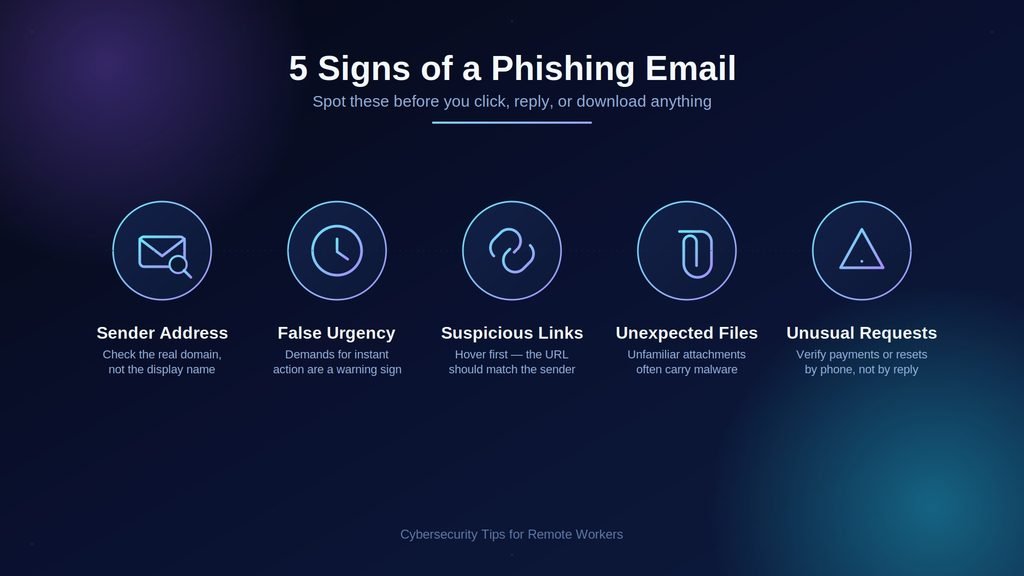
None of this requires security training beyond knowing these five patterns, and reporting a suspicious email to IT takes less time than second-guessing it alone.
Password, MFA, and Device Hygiene
Multi-factor authentication (MFA) stops most account takeovers even when a password has already leaked, because it requires a second proof of identity a code, a push notification, or a biometric scan that a stolen password alone can’t provide. Pair it with a unique password for every account, generated and stored in a password manager rather than reused or memorized.
A password manager generates and stores a different password for every login, so a breach at one company never exposes your accounts elsewhere. Turn on MFA everywhere it’s offered, starting with email, since email is usually the recovery path into everything else you own. Understanding how password managers work makes the habit easier to keep, because it removes the memorization problem that causes password reuse in the first place.
Beyond credentials, treat the device itself as part of the account. Enable full-disk encryption BitLocker on Windows, FileVault on macOS so a lost or stolen laptop is unreadable without the login. Set a short auto-lock timeout and lock the screen manually whenever you step away, even at home, since a shared household is still a household.
Mistakes That Quietly Undo Remote Work Cybersecurity
Most remote work security failures trace back to a handful of habits rather than a sophisticated attack.
- Switching between a personal device and a work device for the same tasks, which spreads company data onto a machine with none of the same protections.
- Emailing work documents to a personal account to work around a slow VPN or an inconvenient file-sharing rule, which moves sensitive files outside company visibility entirely.
- Postponing operating system and app updates because they interrupt a workday, leaving an already-patched vulnerability open for anyone scanning for it.
- Connecting to public Wi-Fi for work tasks without a VPN running, treating convenience as more urgent than the risk in the moment.
- Leaving a laptop screen unlocked and unattended in a shared space, assuming familiarity with the people around you is the same thing as security.
Each of these is a shortcut taken under time pressure, which is exactly why they’re worth naming out loud rather than assuming good judgment will catch them in the moment.
What to Do If You Suspect a Compromise
Report a suspected compromise to your IT or security team immediately, before trying to fix it yourself the first few minutes matter more than getting every detail right. Change the affected account’s password from a different, uncompromised device, and disconnect the affected device from the network while you wait for guidance.
The instinct to investigate alone or wait until you’re sure wastes the time that actually limits damage.
- Disconnect the device from Wi-Fi or unplug the ethernet cable to stop any ongoing data transfer, then leave it disconnected until IT says otherwise.
- Change the password for the affected account from a separate device, and for any other account sharing that same password.
- Report what happened to IT or your security contact with specifics what you clicked, what the message said, what time it happened rather than a general sense that something feels off.
- Check for unfamiliar logins or forwarding rules in your email account, since attackers often set up silent forwarding to keep reading messages after being locked out.
- Follow your organization’s incident process even if it feels like an overreaction reporting a suspected breach early is what keeps a caught phishing click from becoming a wider breach.
None of this depends on knowing whether an attack actually succeeded treating a near-miss the same way you’d treat a confirmed one is what keeps it a near-miss.
Conclusion
Start with the one gap you haven’t touched yet the router password, the missing MFA, the VPN you’ve never actually checked the settings on. Good remote work cybersecurity isn’t a single purchase or a one-time setup; it’s five ordinary habits maintained at the same time, which is why skipping just one tends to be how the others get tested. If your company hasn’t moved toward secure remote access built on Zero Trust, ask why, since the answer usually reveals more about the actual policy than any employee handbook will. Whatever setup you land on, know the reporting step before you need it the first few minutes after you suspect something’s wrong matter more than anything you do to prevent it.
FAQs
1. Is a VPN enough to secure remote work?
No. A VPN protects data moving between your device and its destination, but it doesn’t stop a phishing attack, a weak password, or an unpatched laptop. Treat it as one layer among several home network security, multi-factor authentication, and device encryption all cover gaps a VPN doesn’t touch.
2. Do I need a personal VPN if my company already uses Zero Trust?
Usually not for company systems, since Zero Trust replaces the VPN’s job by verifying each access request directly. A personal VPN can still be worth using for your own browsing on public Wi-Fi, separate from whatever your employer provides for work access.
3. Is public Wi-Fi ever safe for remote work?
Only with a VPN active, and only for tasks that don’t involve sensitive logins or files. Public Wi-Fi at a cafe or airport can be monitored by anyone else on the same network, and a fake hotspot with a legitimate-sounding name is easy to set up.
4. How often should remote workers change their passwords?
Change a password immediately if it’s involved in a breach, reused elsewhere, or shared with anyone otherwise a strong, unique password managed by a password manager doesn’t need routine rotation. Frequent forced changes tend to produce weaker, more predictable passwords, not safer accounts.
5. What’s the biggest cybersecurity risk specific to remote work?
An unmanaged home network combined with the assumption that office-level protection is still in place. Office networks filter and monitor traffic automatically; a home router does none of that unless someone deliberately configures it, which is why network hardening is usually the first gap.
6. Should I use my personal laptop for work if my company allows it?
Only with the same protections a work device would have full-disk encryption, updated software, a password manager, and MFA on every account. Mixing personal and work use on an unmanaged device is one of the most common ways sensitive company data ends up unprotected.